In the game, basic controls such as character movement, targeting attacks, and picking up items are all performed using the mouse.
Using the Mouse
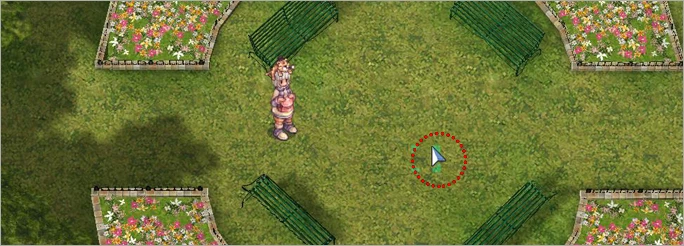
The default cursor is shaped like an arrow, and you can move your character by clicking on the ground. However, movement is only possible in areas where a green square marker appears; you cannot move to areas where this marker does not appear.
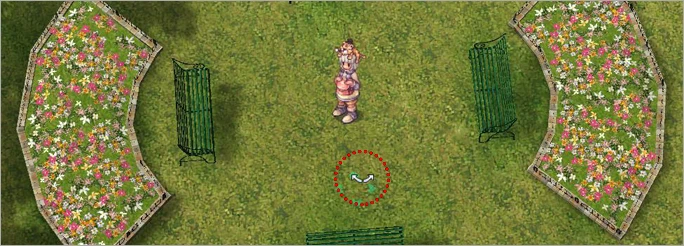
This cursor appears when you click the right mouse button. While in this state, moving the mouse left or right will rotate the screen.
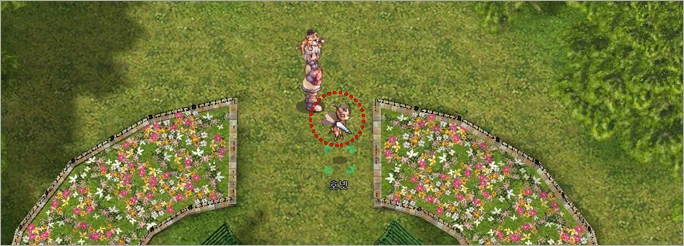
Fairy
This cursor indicates an attackable target, and clicking it will attack the target.
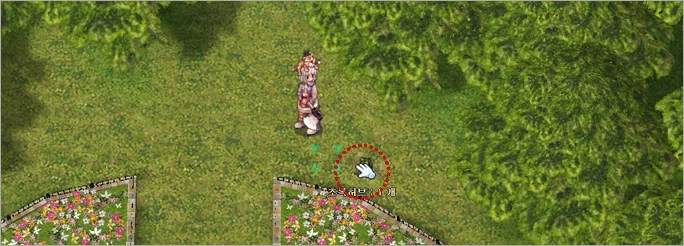
This cursor appears when picking up an item dropped on the ground, and clicking it will pick up the item. However, only one item can be picked up at a time.
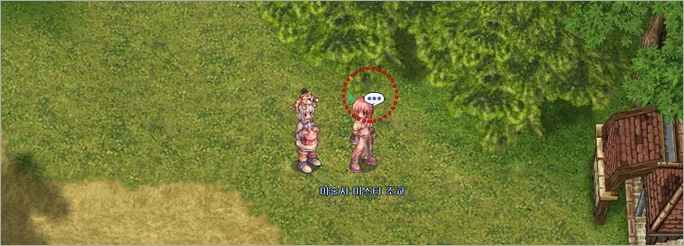
This cursor appears when talking to an NPC, and it also appears when examining objects on the map, not just NPCs. In particular, checking the cursor shape can be very helpful when carrying out investigation quests.
Chatting
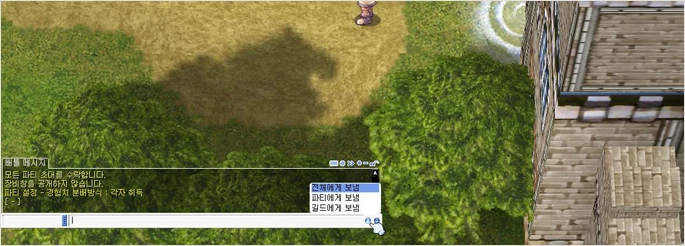
Everyone recruit party/squad members.
Do not disclose the intelligence room.
Party experience - EXP distribution method: Individual acquisition
[ = ]
Send to All
Send to Party
Send to Guild
Basic conversation takes place through the chat window at the bottom of the screen. Pressing the Enter key activates/deactivates the chat window; after typing what you want to say and pressing Enter, the message will be displayed. Using the buttons on the right side of the chat window, you can select All / Party / Guild chat, and the text color differs for each type.
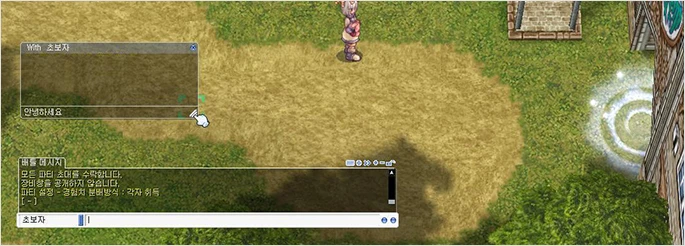
Hello
This is a party example
I accept all party invitations.
I will not disclose the strength of my equipment.
Party camping - Experience distribution method: Individual acquisition
[ ~ ]
Beginner
If you want to send a 1:1 whisper to a specific user, enter the target character's name in the left field of the chat window, type your desired message in the right field, and press Enter to send a 1:1 whisper. The chat window can be resized using F10 or by clicking and dragging with the mouse, and double-clicking on the chat window's title area allows you to change it to a title of your choice.
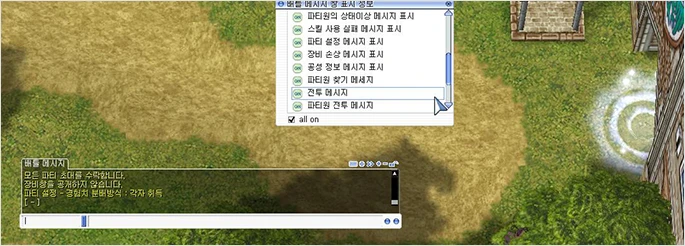
Combat Message Window Display Information
☑ Display party member status ailment messages
☑ Display skill use failure messages
☑ Display party setting messages
☑ Display equipment damage messages
☑ Display siege information messages
☑ Party member search messages
☑ Combat messages
☑ Party member combat messages
☑ all on
Combat Messages
Automatically accept all party invitations.
Do not attack guards.
Party Setting: EXP Distribution Method: Individual Acquisition
[-]
Additionally, you can add multiple tabs using the + button at the top right of the chat window, and clicking the ◎ button allows you to edit settings so that only desired messages are displayed.
※ Website information may change somewhat according to game updates.